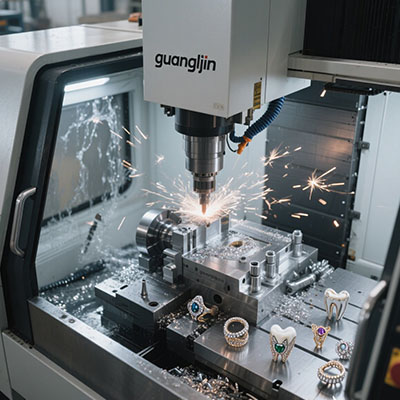
You have the rotary table. The fourth driver is wired. The controller powers on. Then you command a simple A-axis rotation and the machine throws an alarm or stalls.
Setup problems with a 4 axis CNC controller rarely come from defective hardware. They come from configuration assumptions borrowed from linear axes. Rotary motion follows different rules.
Why Rotary Axis Configuration Fails on First Attempt
Linear axes move in millimeters or inches. Rotary axes move in degrees. The controller must know which type it is driving. Skip this distinction and every subsequent parameter inherits the error.
A common failure appears when users enable soft limits before homing the rotary axis. Grbl-based controllers require homing to establish position before soft limits become valid [citation:3]. Command an A-axis move without homing, and the controller reads the position as unknown. It triggers an alarm and halts [citation:13].
Therefore, the first setup decision is not microstepping or velocity. It is whether the controller treats axis A as linear or rotary. Get that wrong, and the rest of the configuration fights you.
The Pulse Math That Determines Rotary Smoothness
Rotary resolution does not benefit from extreme step counts. Masso documentation states that 8,000 to 10,000 pulses per revolution is sufficient for most applications [citation:4]. Higher values only help when turning very large diameters.
Excessive microstepping eats pulse-rate headroom without improving mechanical accuracy. The rotary table’s worm gear introduces backlash that no microstep setting can eliminate. Measure backlash with a dial indicator before tuning software compensation.
Calculating Steps per Degree
The formula is straightforward. Multiply motor steps per revolution by the gear reduction ratio by the microstep value. Divide by 360. Record this number. It becomes the A-axis resolution parameter.
LinuxCNC users must also verify that the requested step rate stays within the software step generator’s capacity. If the product of maximum velocity and input scale exceeds what the base period allows, following errors occur during rapid moves [citation:5]. Hardware step generation resolves this bottleneck.
Comparison: Two Setup Approaches for Rotary Integration
| Criterion | Project A: Replace X with Rotary | Project B: True Fourth Axis (A) |
|---|---|---|
| Configuration method | Recalculate X-axis pulse equivalent based on stock diameter | Add A-axis with dedicated steps-per-degree parameter |
| Switching between modes | Requires parameter changes each time | Select rotary mode in controller; no rewiring |
| G-code compatibility | Uses X commands; post-processor dependent | Native A-axis commands |
| Accuracy | Varies with workpiece diameter | Consistent angular resolution |
| Best for | Legacy controllers with no fourth channel | Any controller with four independent step/dir outputs |
Some older controllers use a substitution method. The rotary device replaces the X axis, and the pulse equivalent changes based on the diameter of the cylindrical stock [citation:9]. This works for simple wrapping operations. It creates friction when you need simultaneous X and A motion.
A true fourth axis keeps X available for linear positioning while A rotates. The post-processor generates distinct A commands. This is the cleaner setup for anything beyond basic cylinder carving.
Step-by-Step: Configuring the A-Axis Without Alarm Cycles
- Disable soft limits before the first jog. Grbl controllers require homing before soft limits function correctly [citation:3]. An unhomed rotary axis will trigger alarm code 2 on any movement command. Clear alarms with $X, then jog manually to confirm motor direction and wiring.
- Enter steps per degree in the rotary parameter field. Do not use an axis calibration wizard for rotary axes. Masso documentation explicitly warns against this because rotary axes have no mechanical tolerance to calibrate away [citation:7]. The calculated value is exact.
- Set maximum feedrate in degrees per minute. A value of F10 on a linear axis means 10 inches per minute. On a rotary axis, F10 means 10 degrees per minute. One full rotation would take 36 minutes [citation:7]. Set rotary feedrates separately from linear feedrates, or combined moves will crawl.
- Verify pulse width against the driver datasheet. The controller’s step pulse duration must exceed the driver’s minimum response time [citation:2]. If the motor buzzes without turning, the pulse is too narrow for the optocoupler inside the driver.
- Ground the A-axis signal cable at the controller end only. Rotary drivers often sit near spindle VFDs. Inductive noise flips direction signals mid-move. Shielded cable with single-end grounding prevents this failure mode.
- Run a full 360-degree dry run above the workpiece. Listen for hesitation. Watch the chuck for smooth acceleration. A stall during the dry run will become a scrapped part during cutting.
Case Notes: When the Alarm Was a Parameter, Not a Fault
Our team configured a benchtop mill with a Grbl-based 4 axis CNC controller in 2025. The A-axis motor turned during manual jog. Every G-code command containing an A move triggered a soft limit alarm instantly.
The controller had never homed the rotary axis. Grbl’s soft limit logic requires a known position before it validates travel [citation:3]. Without homing, the position register held garbage values. The fix took thirty seconds: disable soft limits for the A axis, verify motion, then configure homing or set the axis to ignore soft limits entirely. The controller was fine. The parameter order was wrong.
Frequently Asked Questions
Send $X to unlock the controller [citation:13]. Then disable soft limits for the rotary axis in your configuration. Grbl requires homing before soft limits become valid [citation:3]. Without a home switch on the rotary table, you must either add one or run the axis with soft limits disabled.
Calculate it. A 200-step motor at 8x microstepping on a 90:1 table produces 200 × 8 × 90 = 144,000 steps per table revolution. Divide by 360: 400 steps per degree. Enter 400 in the A-axis resolution field.
Combined moves execute at the slowest axis feedrate. A rotary feedrate of F100 is 100 degrees per minute, which equals roughly 0.28 RPM. That is extremely slow for cutting [citation:7]. Increase the rotary feedrate significantly, or separate rotary positioning from linear cutting moves.
Standard Grbl firmware supports three axes. You need grblHAL or a controller with native four-axis firmware. The hardware board may have four headers, but the firmware must generate four independent pulse streams. Confirm firmware support before wiring the fourth driver.
Between 8,000 and 10,000 pulses per revolution is sufficient for most work [citation:4]. Higher pulse counts do not improve accuracy on a geared rotary table. They only consume controller processing headroom that simultaneous four-axis interpolation may need.
Checklist: Rotary Axis Setup Verification
- Confirmed controller firmware supports four independent step/direction channels
- Calculated steps per degree from motor steps, microstepping, and gear ratio
- Entered rotary resolution without using an axis calibration wizard
- Disabled soft limits for the A-axis during initial jog testing
- Verified pulse width meets the stepper driver’s minimum specification
- Set rotary feedrate in degrees per minute, not linear units
- Routed A-axis signal cable away from spindle power lines, shielded at one end
- Completed a full 360-degree dry run at cutting feedrate without stall
- Measured mechanical backlash with an indicator before applying compensation
- Documented the rotary parameters for future reference or controller replacement
Final Configuration Notes
The 4 axis CNC controller that produces reliable rotary motion is not the one with the highest pulse rating. It is the one whose setup order matches the physics of the axis.
Disable limits first. Calculate resolution second. Verify pulse timing third. Test without cutting fourth. This sequence prevents the alarm loops and silent stalls that consume entire afternoons. The controller is a tool. The setup discipline is what makes it useful.